
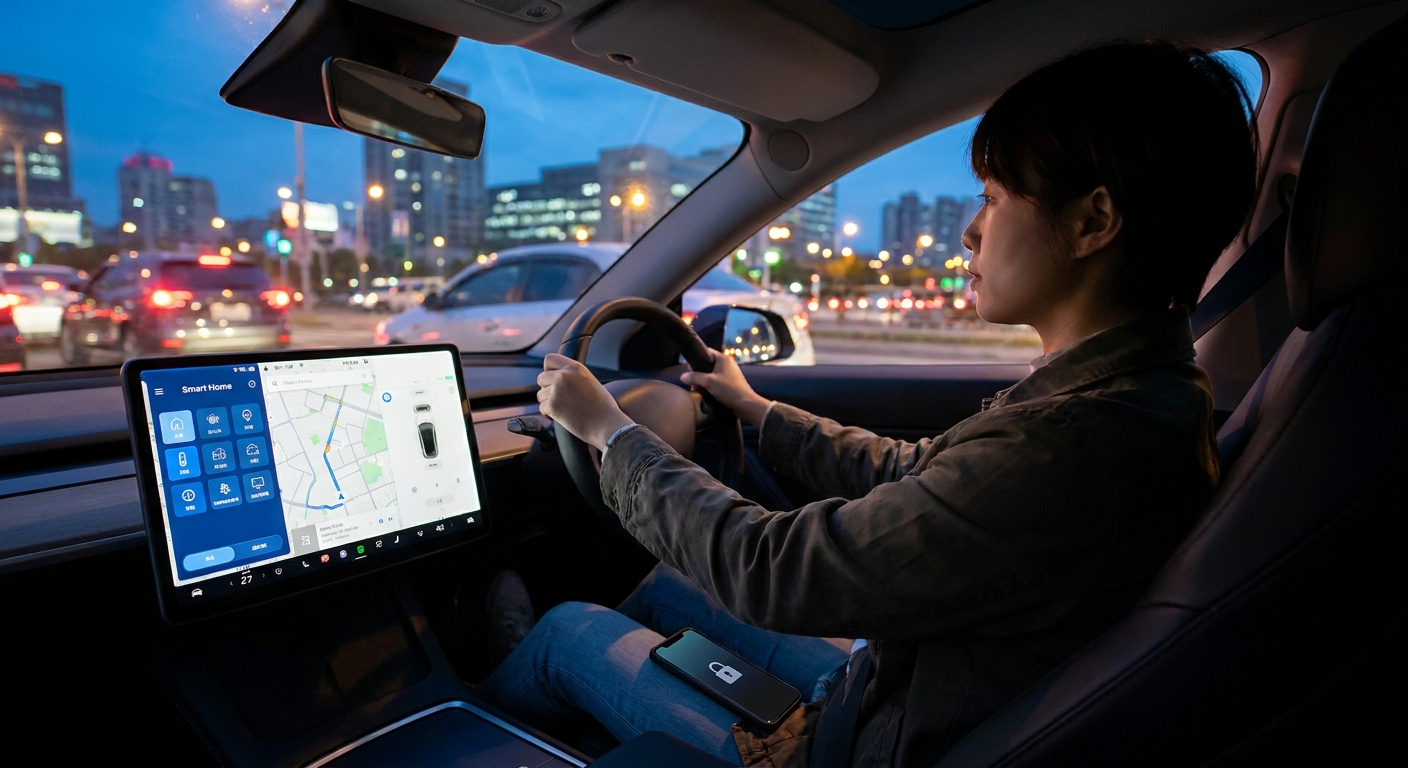
Today’s cars come loaded with Wi‑Fi hotspots, app stores, over‑the‑air updates, and cloud-connected services. That’s handy, but it also means your car knows a lot about you: where you go, how you drive, and even what you listen to.
Your Car Is Basically a Rolling Smartphone Now
The goal isn’t to opt out of all this tech; it’s to use it on your terms. Here’s how to get real everyday value from connected-car features while keeping control of your data and your sanity.
1. Set Up Connectivity With Intent (Not on Dealer Autopilot)
Most people let the dealer rush them through setup on delivery day. That’s how you end up with random accounts, default privacy settings, and a car that pings you more than your phone.
Do this instead:
Create a dedicated car email
- Use a specific email address (e.g., firstname.car@...) to manage all car-related accounts. - This keeps logins simple and makes it easier to see what’s tied to the vehicle.
Manually walk through account creation at home
- Skip the “we’ll just do it here at the desk” approach. - At home, on your own time, set up: - The manufacturer app/account - Any Wi‑Fi hotspot subscription - Relevant connected services (navigation traffic, remote start, etc.)
Choose features based on your driving reality
- Driveways and street parking in winter? Remote start and heated seat activation from the app are worth it. - Mostly city driving with good cell data? In‑car Wi‑Fi may be unnecessary.
Experience-based tip:
Spend 20 minutes the first week pairing the car to your phone and checking which switches you just flipped. You’ll prevent a lot of surprise emails, alerts, and subscriptions.
2. Use Remote Features for Real Convenience, Not Party Tricks
The companion app isn’t just there so you can show your friends you can start the car from a restaurant. It can quietly solve daily annoyances if you use it right.
Practical ways to use remote features:
Remote start and pre-conditioning
- Cold climate: start the car and heat the cabin and seats a few minutes before you head out. - Hot climate: pre-cool the car to save yourself from oven-like interiors.
Lock/unlock sanity saver
- If you constantly wonder, “Did I lock the car?” check the app instead of walking back. - Use remote unlock for trusted family members if they need to grab something.
Find-my-car in large lots
- Many apps show your car’s last known location. Use it after stadiums, airports, and malls.
Send destinations from your phone
- Search for a location on your phone and push it to the car’s nav. - This is usually faster and safer than typing addresses on the in‑car screen.
Concrete rule:
If a feature saves you time or hassle at least once a week, keep it. If it’s just a cool thing you used once to impress someone, you probably won’t miss it if you disable it.
3. Take Five Minutes to Lock Down Your Car’s Data Sharing
Connected cars collect data by default. You can’t turn it all off, but you often have more control than you think.
Where to look and what to change:
In-car privacy settings
- Look for menus labeled Privacy, Data, or Connectivity. - Typical toggles to review: - “Share vehicle data for product improvement” - “Share location data” - “Driving behavior data for insurance” - Turn off anything you’re not comfortable with, especially driving behavior sharing unless you’re intentionally enrolling in a usage-based insurance program.
Mobile app permissions
- In your phone settings, check what the car app can access: location, contacts, Bluetooth, etc. - Turn off anything unrelated to its core job (you probably don’t need contact syncing in your car app).
Account dashboards on the web
- Many automakers have a web portal where you can: - Review data and consent settings - Turn off marketing communications - See what services are linked to your account
Experience-based advice:
Treat your car’s data settings like you would a new social media app: default is “more sharing than you need.” Spend a few minutes trimming it down.
4. Use Vehicle Health and Driving Data as a Tool, Not a Scoreboard
Most connected cars can report fuel usage, battery status, tire pressures, and even driving patterns. That data can either stress you out or actually help you.
How to use it sensibly:
Maintenance alerts
- Pay attention to monthly or mileage-based health reports if your car provides them. - Use them to schedule tire rotations, oil changes, and inspections before something becomes a problem.
Battery and range (for EVs and plug-ins)
- Monitor typical range over a few weeks instead of panicking over day-to-day swings. - Use charge scheduling in the app to take advantage of cheaper off-peak electricity if your utility offers it.
Driving behavior feedback
- Some apps score your braking, acceleration, and cornering. Take this as coaching, not judgment. - Focus on one improvement at a time, like smoother braking, and see if your fuel or energy usage improves.
Trip history
- If you track expenses, use trip logs to estimate work vs. personal mileage. - For long trips, review average speed and consumption to plan better stops next time.
Practical perspective:
Don’t obsess over every data point. Look for patterns over weeks, not individual trips. The car is showing you trends; use them to tweak habits, not to beat yourself up.
5. Disconnect Cleanly When You Sell or Share the Car
The connected side of the car doesn’t automatically disappear when you hand over the keys. Your accounts, destinations, and even garage codes can stick around if you’re not careful.
Before selling or trading in:
Factory reset the infotainment system
- Look for a “Reset to factory settings” option. - This should wipe paired phones, contacts, saved addresses, and personal apps.
Remove the car from your online account
- Log into the manufacturer’s website or app. - Find “My Vehicles” and remove the car from your profile. - Cancel or transfer any subscriptions (Wi‑Fi, data plans, remote services).
Clear garage and home shortcuts
- Delete HomeLink entries (garage doors, gates). - Remove “Home” and frequently visited addresses from navigation favorites.
When sharing a car (family, car share, loaning to friends):
Use separate driver profiles if available
- Set up another profile with their seat/mirror settings but restricted app and contact access.
Avoid storing sensitive destinations
- Don’t label places like “Bank” or “Safe Deposit” by name in favorites if multiple drivers use the car.
Experience-based tip:
Take disconnecting as seriously as returning a company laptop. If it can start your car or find your house on a map, it deserves a few minutes of cleanup.
Final Word: Make Connected Tech Boringly Useful
In-car connectivity doesn’t have to be flashy to be valuable. The sweet spot is when it quietly:
- Warms or cools the car before you get in,
- Helps you find the car in a packed lot,
- Nudges you about maintenance before it becomes a breakdown, and
- Stays out of your way the rest of the time.
Set it up on your schedule, trim the data sharing to what you’re comfortable with, use the features that genuinely make life easier, and disconnect cleanly when you move on. That’s how you stay in control of a very connected car.